The best ways to cool a laptop and prevent overheating: a comprehensive guide
 By Admin
Do you suffer from a hot laptop or high temperature in the summer? Are you looking for effective solutions to prevent damage to computer components due to overheating?
Do you want better solutions to cool and maintain your laptop?
For as long as possible? If your answer is “yes” to any of these questions, then this article is what you are looking for! In this comprehensive article, we will give you a detailed guide on how to cool your laptop and protect it from summer heat.
We will explain to you the reasons for the laptop getting hot and its effect on its performance and lifespan. We'll also show you how to monitor your laptop's temperature, clean each of its parts, and give you tips for protecting it from summer heat. Whether you are a novice or an expert user, in this article you will find everything you need to know how to cool your laptop and protect it from summer heat.
Causes of laptop overheating Many users suffer from the problem of overheating of the laptop, especially in the summer, but what are the causes of this problem? There are many factors that can cause the laptop to overheat, including: Running high-performance games or programs: These programs require a lot of power and processing, which leads to increased heat of the processor and graphics card. Dust and dirt buildup: Dust and dirt can build up inside your laptop on the fan and vents, obstructing airflow and causing overheating.
Blocked ventilation holes: The ventilation hole may become blocked due to placing the laptop on a soft surface such as a bed or pillow, which can prevent airflow and heat up. Cooling fan damage: The cooling fan may become damaged due to heavy use, the passage of time, or the cooling paste drying out without realizing it, resulting in its ability to cool the laptop being weak. Poor processor performance: The processor may be weak and cannot process data fast enough, causing the laptop to overheat.
Use antivirus software: Antivirus software requires a lot of power and processing, which may cause the laptop to overheat. Too many programs open at the same time: Opening too many programs at the same time puts a heavy burden on the processor and RAM, which may lead to overheating. Hot operating environment: If your laptop is running in a hot or humid environment, it will heat up faster.
In the next paragraph, we will give you tips to prevent your laptop from overheating and cool down your laptop. Tips to prevent the computer from overheating and cooling the laptop. The hotness of the laptop depends on its condition, as its state when it is idle differs from its state when it is running a heavy program, such as when playing games. In general, even gaming laptops (should not run without running software) have a temperature higher than 55 degrees Celsius.
If the temperature reaches 80 or 90 degrees Celsius while programs are running, there is likely a problem. At this point, it becomes necessary to take measures to reduce the temperature. To protect your device from the dangers of overheating and maintain its performance and lifespan, here are some effective tips: 1.
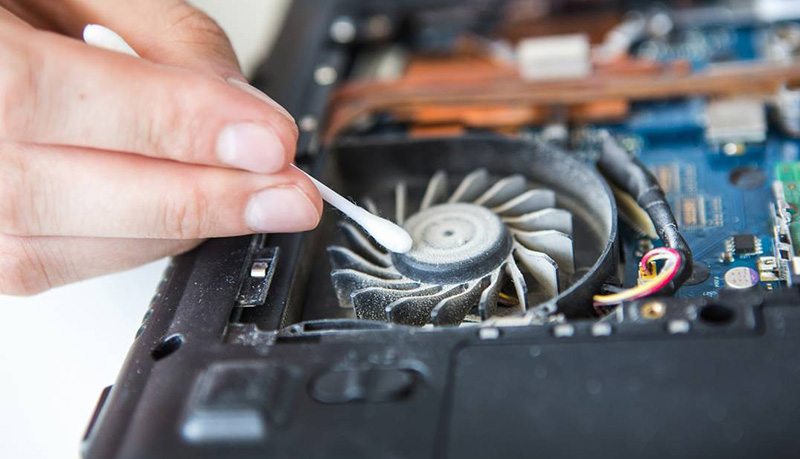
Clean the laptop and computer regularly. Some dirt and dust accumulate on the laptop’s components and internal parts over time. You may not see this accumulated dust inside, but you can discover it by looking inside the laptop’s external slots that can enter dust and checking their cleanliness. Make sure the laptop is completely closed, then use the blower to clean the laptop, but at the lowest level of force, and try to clean these openings well from time to time. Or if you can open the laptop, blow it with a can of compressed air intended for cleaning electronics.
Clean your laptop inside and out periodically. Use a vacuum cleaner to vacuum dust and dirt from the fan and vents. Clean internal components, such as the processor and graphics card, using a soft cloth slightly dampened with a specialized electronics cleaner.
Make sure to remove any dust buildup on the laptop screen and clean the keyboard. It is recommended to change the cooling paste in your laptop if it is old or dry. 2.
Use a program to monitor the computer temperature. Install a program to monitor the laptop temperature. There are many free programs available, such as HWMonitor and Core Temp. Use the program to monitor the temperature of the processor, graphics card, and RAM.
If you notice any of these components overheating, it is important to take steps to cool down your laptop such as changing the cooling paste or changing the fans. 3. Use an external laptop cooler. The laptop may be cooled externally through cooling fans that are operated via the USB port. It is not very powerful, but it contributes to cooling the laptop in closed and crowded places. There are several types of these fans, and you can look for a “Laptop Cooling Pad” when purchasing a new one.
External laptop fans are installed and glued to the bottom cover of the device, which pushes cool air into the laptop and also contributes to reducing the temperature of the laptop well. Their price ranges from 10 to 100 dollars or more. There are many types of laptop coolers available, including air coolers and liquid coolers from reputable companies like Thermaltake, Havit, Cooler Master, and others.
Choose a cooler that fits your needs and budget. 4. Replace the cooling fan. You can confirm that the laptop fan is damaged or weak by placing your hand under the device where the fans are and feeling the hot air coming out. If it is weak and sparse or appears at long intervals and you do not hear the sound of the fans, then you need to change the laptop fan or clean it from accumulated dust.
If your laptop's cooling fan is old or damaged, you may need to replace it. You can buy a new cooling fan from an online store or computer store. For a desktop computer, you can change the cooling paste and fans of the CPU or GPU graphics card if they are not working efficiently for you.
5. The best position for cooling the laptop and passing air. The best position for the laptop is on desks or flat objects to allow cool air to pass through the laptop. It is preferable to use a laptop stand to raise it from the desktop.
This will improve airflow around the laptop and help cool it better. If you are someone who likes to use your laptop on a bed or place it on your feet or on fabrics, you are preventing the cool air from passing through the laptop and only the hot air is passing to your computer and it also collects, so you must check the position of the laptop to allow air to pass through. 6.
Use power saving settings Change the “Power option” settings on your Windows laptop to Low Power or Balanced. This will reduce your laptop's power consumption, which may help prevent it from overheating. On the same power settings page, find System cooling policy and change the setting from Passive to Active.
7. Close some computer-consuming programs. Avoid running high-consuming programs, such as video games or video editing programs, at the same time. This will increase the workload on the processor and graphics card, which may cause the laptop to overheat.
Close all programs that you are not using. Monitor the temperature to see if it is decreasing or rising due to some programs. Open programs consume power and processing, which may cause the laptop to overheat.
Use the Task Manager to close programs running in the background. Or the Resource Monitor tool built into Windows. You can also turn on Airplane Mode on your laptop when you don't need to use Wi-Fi or Bluetooth.
This will turn off wireless transmitters, which can help reduce your laptop's power consumption and help prevent it from overheating. 8. Update drivers Update the drivers for all your laptop components, such as the processor, graphics card, and Wi-Fi.
You can update drivers from your laptop manufacturer's website or from Microsoft's website. Outdated drivers may cause your laptop to perform poorly and consume more power, which can cause it to overheat. 9.
Malware Removal Regularly scan your laptop for malware. Malware can consume a lot of your laptop's resources, which can cause it to overheat. Use a good antivirus program to scan your computer for mobile viruses and remove any malware that may be present.
10. Removing the battery (for removable laptops) If your laptop is removable, remove the battery when powered on. This will reduce your laptop's power consumption and help prevent it from overheating.
It is important not to leave the laptop charging for a long time when it is not needed because it also increases heat. 11. Avoid operating the computer in a hot or humid environment. Do not use the laptop in direct sunlight or in extremely hot indoor spaces.
Make sure to operate your laptop in a cool, well-ventilated area. If you use your laptop in a humid environment, use a dehumidifier to keep the humidity level low. 12.
Upgrading Laptop Components If your laptop is older, you may want to upgrade its components, such as the processor, graphics card, and RAM. This may improve your laptop's performance and reduce its power consumption, which may help prevent it from overheating. Related article: Guide to upgrading a slow and old laptop - 5 adjustments to improve speed by 70% The danger of frequent laptop and computer overheating The problem of laptop overheating is not only limited to feeling uncomfortable and annoying to the user, but it has many negative effects on the laptop itself, including: 1.
Impact on computer performance: Decreased processor speed: When the processor gets hot, it automatically reduces its speed to avoid damage. This leads to a decrease in overall computer performance, which may lead to slow operation of programs and games, and negatively affect the user experience. Increased response time: Overheating of the laptop may increase the response time of programs and games, making the laptop slow and unresponsive.
Freezes and Crashes: In some cases, overheating of the laptop may cause programs to freeze or crash completely. 2. Reducing its lifespan: Component damage: When your laptop continuously heats up, it may damage internal components, such as the processor, graphics card, and RAM.
This shortens the computer's lifespan and exposes it to the risk of permanent damage. Thermal paste drying out: Over time, the thermal paste placed between the processor and the air cooler may dry out. This results in the cooler not being able to cool the processor, which may lead to overheating and damage.
3. Increased risk of breakdown: Sudden breakdown: High temperature of the laptop may cause it to collapse suddenly without warning. This results in data loss and software corruption.
Blue Screen: The Blue Screen of Death may appear on your laptop screen if it gets too hot. This is a warning message from the operating system that indicates a serious problem that requires an immediate fix. 4.
Damage to computer components: Damage to the processor: The processor is the most temperature-sensitive component of a laptop. When it gets too hot, it can be permanently damaged. Graphics card damage: The graphics card is also a temperature-sensitive component.
When it gets very hot, permanently. (See the guide to checking the GPU graphics card). RAM Corruption: The RAM (Random Access Memory) may be damaged.
If your laptop gets too hot. In conclusion, keeping your laptop cooled is essential to ensure its proper operation and improve its lifespan. By following the tips mentioned in this article, you can improve your laptop's cooling and prevent it from overheating.
Remember that cleaning the ventilation holes regularly and using a suitable position for the laptop are among the most important factors that contribute to its effective cooling. In general, make sure to monitor the laptop temperature regularly and take the necessary measures if you notice that it has risen significantly. By following these simple tips, you can enjoy using your laptop for many years without experiencing overheating problems.
Or if you own an old laptop and not all solutions fit it, even after changing the internal parts, perhaps it is time to buy a new one. You can take a look at our article on the best laptop brands: from economical to luxury. There are still 10 ways to benefit from an old laptop without selling it or giving it up.
Article updated May 2024: Revising the article and adding more solutions and steps to cool the laptop and solve common heating problems.
DROPIDEA
We hope this article has added real value to you. At DROPIDEA, we always strive to deliver high-quality content that helps you grow and evolve in the digital space. Follow us for more useful articles and guides.
Admin
DROPIDEA
Latest Articles

Microsoft Gains $3.2 Billion from Its Investment in Anthropic

Zuckerberg: Billions of People Will Have AI Assistants Within Five Years

Microsoft Enters Direct Competition Against OpenAI and Anthropic

Pangram Raises $9 Million to Detect AI-Generated Content