Free up Mac space in 7 effective steps - Get additional storage space for your Mac
 By Admin
Most Apple MacBooks have hard disks with small storage capacities that fill up quickly after a short period of purchase, even new ones. Fortunately, there are a number of very simple and easy methods that can help free up Mac space without sacrificing user files. Below we will review some of the most effective of these methods.
#Mac devices are usually characterized by stable performance even after a long period of time has passed since purchase, perhaps because the hardware is compatible with the operating system, or because Mac devices are always equipped with the latest technology. The reasons are many, but... If the hard disk storage space runs out, you will notice a complete shift in performance and efficiency. This is expected, as it is recommended that there be at least 10% of the storage capacity free to enjoy sufficient smoothness while using the device.
A completely full hard disk means that the macOS system will not be able to download new updates, the programs will also not be able to update themselves, and you as the user will not be able to download new files or applications. Then you will realize that everything depends on the hard disk storage space. So, in this article, let us learn about simple but effective steps that will help you get additional storage space for your Mac.
You do not need to be a computer expert, the steps are clear and anyone can do them easily. How to free up Mac space in the 7 easiest ways Method 1: Getting rid of browser temporary files With the daily use of web browsers, a lot of temporary files are stored on the hard disk, which helps the browser load visited web pages faster when you visit them again later. While they are quite useful, deleting them will free up significant storage space.
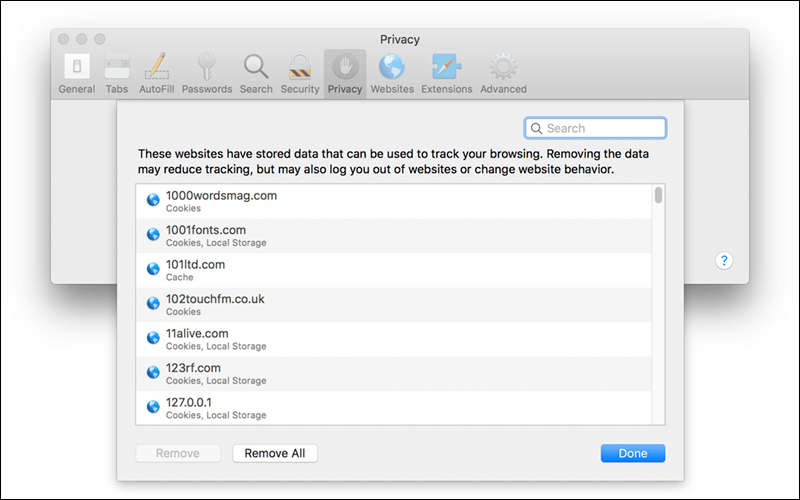
Note that the web browser will automatically start re-caching new temporary files again after following this method. This may result in the download process taking longer, but as we mentioned, freeing up space is our goal now. So, to get rid of these temporary files, you will need to search within the settings of your web browser for the option to clear the cache or “cookies”. For example, if you are using the Safari browser, you will need to click on the Safari drop-down menu from the toolbar, then choose “Preferences.” After that, go to the Privacy tab, and there you will click on the “Details” button, then click on Remove All, and when a confirmation message appears, click on the Remove Now button.
Thus, you have eliminated the temporary files of all websites visited through the Safari browser. In Google Chrome, the method differs, but you can review this guide from Google to learn how. In any case, after deleting the temporary files of the browsers, you should have ample storage capacity on the hard disk, but if it is not enough, continue reading... The second method: Empty the trash The trash bin on the macOS system is equivalent to the Recycle Bin of the Windows system, as the task is the same; Instead of permanently deleting a file, it's kept in this basket so you can restore it later if you go back and change your mind.
But as time passes and this basket fills with deleted files, a lot of space becomes occupied by files that are not important to you. So, you can free up storage space by emptying this basket. All you have to do is right-click on the Trash icon in the Dock bar and choose Empty Trash from the list.
This will delete all the files you sent to the trash from the Finder app. Keep in mind that some other applications have their own trash bin, so you will need to open each application and empty its trash bin as well in order to save space on the hard drive. iPhoto, iMovie, and Mail are examples of these apps. You'll find the Trash section on the left side, which is where every file you've deleted within the apps is located.
Method 3: Uninstall unnecessary programs. The applications that you have installed on your Mac take up a lot of storage space, especially when you install a lot of applications. So, when you want to free up Mac space, you should consider getting rid of and uninstalling applications that you no longer need. All you have to do is open the Finder application, then go to the Applications section in the sidebar, then right-click on the application icon and choose Move to Trash from the drop-down menu until the application is deleted, including its temporary files.
Of course, the more apps you delete, the more space you get. If you want to know which applications are consuming the most space, through the Applications section, click on Show items in a list from the toolbar, and then click on the Size box to sort the installed applications by size.
Method 4: Delete the files that consume the most space to save
Hard Disk Space It's important to know exactly what's taking up storage space on your Mac. You can use Disk Inventory You can then get rid of the most space-consuming and unnecessary files.
Or you can at least move them elsewhere if they're important – for example, if you have large video files, you may want to move them to an external hard drive instead of the Mac's internal hard drive. But be careful here and do not delete or move any system related files.
Method 5: Deleting duplicate files is one of the things that
Duplicate files scattered inside your device can take up a lot of storage space on your hard drive, especially if you use it for a long time. But fortunately, it is easy to find and delete these files thanks to the presence of applications dedicated to this matter, such as the Gemini 2 program, which features an easy-to-use interface, but it is fully capable of finding duplicate files scattered inside the hard disk. You can download the program from the AppStore for free and use it easily. You specify the place where you want to search for duplicate files, and then the program scans this place and displays the results of all the duplicate items, whether photos, videos, documents, audio...etc., and you can delete the duplicate copies with the push of a button.
Overall, this method is quite effective and you should try it to get more storage space for your Mac. Method 6: Delete Additional Languages Files Most Mac applications come with Languages files for each language they support, and you can change the language of the macOS system and start using applications in that language immediately. This is great, but in most cases you may only be using one language on your Mac, so you won't need extra language files taking up a lot of space for no good reason.
If you're trying to shrink as many files as possible onto your device's small hard drive, deleting them might be helpful. You can use the Monolingual program to perform this task with ease, as you select the languages you do not want and click Remove to delete them immediately.
Seventh method: Use hard disk cleaning programs
You don't want to spend a long time searching for things that need to be manually disposed of to save space or to deal with a slow Mac. You can rely on a third-party program that provides all the ways to save storage space on your Mac, such as getting rid of temporary files, duplicate files, language files, emptying the trash, completely deleting applications... and much more.
CleanMyMac 3 is the best of these programs ever, as it features a very easy interface and contains many features that will undoubtedly help you in obtaining enormous additional space on your MacBook. There is a free trial version of the program available that allows you to get rid of some of the unnecessary files, but to take advantage of all the features you will need to purchase the full version.
DROPIDEA
We hope this article has added real value to you. At DROPIDEA, we always strive to deliver high-quality content that helps you grow and evolve in the digital space. Follow us for more useful articles and guides.
Admin
DROPIDEA
Latest Articles

Microsoft Gains $3.2 Billion from Its Investment in Anthropic

Zuckerberg: Billions of People Will Have AI Assistants Within Five Years

Microsoft Enters Direct Competition Against OpenAI and Anthropic

Pangram Raises $9 Million to Detect AI-Generated Content