An easy way to know who saved an Instagram clip from your account
 By Admin
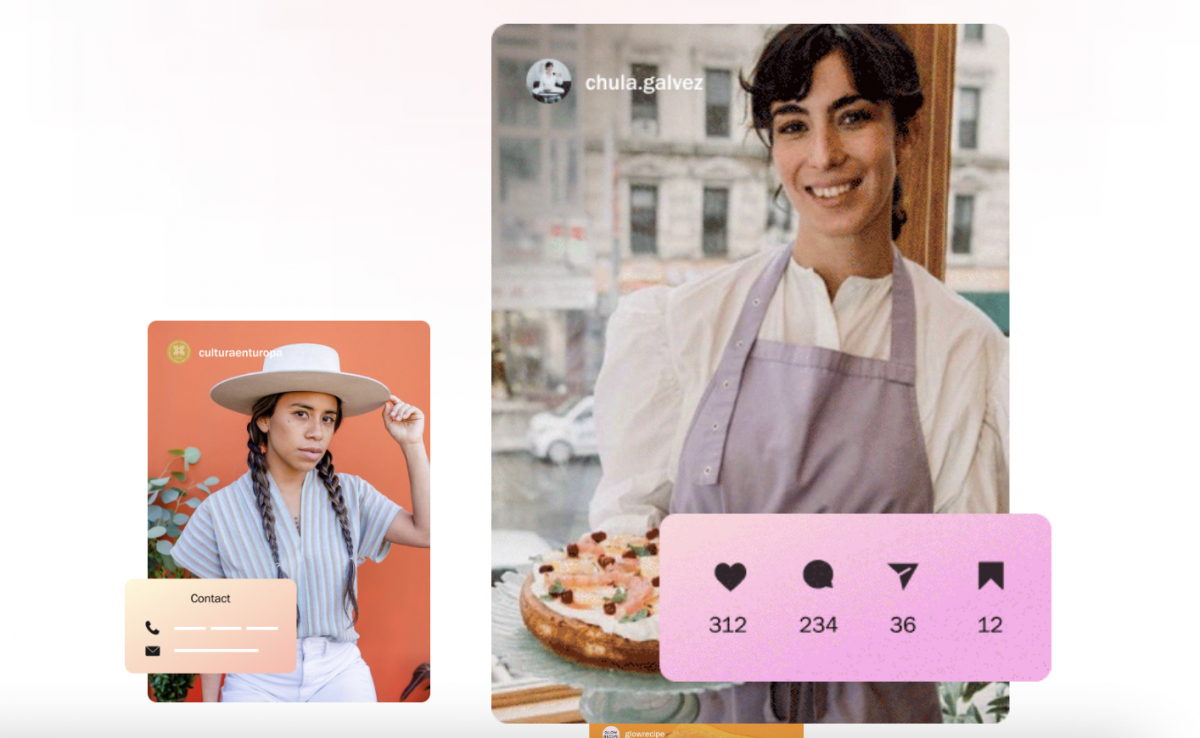
There is an easy way to know who has saved an Instagram clip from your account through a distinct feature known as “Save Post”. After Instagram has become a more interactive social platform in the modern era. We all have to become well acquainted with the tools present within this important interface platform and the features associated with those tools.
So that it is easy for us to deal with this platform professionally without falling into the clutches of tricks and fraud by others. In this article, we will learn together about the “Save Post” feature to identify who tried to save your post on your Instagram, especially if you are a social media manager for a business. Read also: How to make a live broadcast on Instagram Save posts on Instagram Saving posts on Instagram is an important indicator that shows several important indications, the first of which is that it is considered an important alternative to screenshots for some.
In addition, it is an important indicator when deciding whether or not to publish more posts. Simply clicking the Save Post button is an important measure of your followers' status, interests, and opinions. A post that is saved by a large number of users is vital evidence of the interest of Instagram followers. How do you know who saved your post?
How do you know who saved your post? A question answered by the Instagram platform with high credibility, as it is not possible to reveal the identity of the accounts that click on the Save Post button for a specific post. While information can be obtained regarding the number of times this button was clicked. This step comes as a precautionary measure from Instagram to protect user privacy as an additional feature.
Instagram Insight tool The Instagram Insight tool is an important tool for converting your personal Instagram account into a professional account to access Instagram Insight. So you can see how many people have shared your posts, and even how many people have saved your posts on Instagram.
How to activate a Professional Profile on Instagram Activation method
Professional profile on Instagram is easy and takes place in several steps as follows: 1. Obtain the latest version of the Instagram application via the App Store or Play Store. 2. Run the application on your mobile phone. 3. Click on the profile tab, then the hamburger icon at the top right of the screen. 4.Select Settings, then click Account.
5.Choose to switch to the professional account. 6.Choose the word “follow” by clicking on it, then follow the instructions that appear on the screen and enter all the information requested by the Instagram application. You have now taken the first step towards the desired goal.
Who saved your private Instagram post? Who saved your private Instagram post? An important question that we ask to answer in two ways to find out the identity of the person who saved your private post in his possession.
These methods are as follows: First: The first method: A. Using Instagram Insights This method enables you to know the number of times people have saved your posts. You can only see who saved the post if your account is set to a professional profile.
This method includes the following steps: Launch the Instagram application. If your profile is known to the professional, several additional options appear in every post you share with others. Select a job from the profile grid. Clicking on Show Statistics below the photo/video post shows a quick summary showing how many likes, comments, shares and saves the said post has received.
The statistics presented will certainly indicate the procedures to be followed. Using Instagram Insights is the best known way to find out who shared your post on Instagram. The idea is to set your profile to a public profile, so anyone can easily hit the share button to post your post to their Instagram Stories or send it via direct message.
The second method b. Ask your followers Instagram Stories are a powerful marketing tool that you should learn how to use. It's also effective for tracking your followers by posting photos or videos, offering polls, and offering Q&A promotions.
The steps are as follows: 1. Open the Instagram application 2. Open Instagram Stories 3. Click on the stickers icon and choose Quiz sticker 4. Write a quick question and yes or no options 5. Publish the story by clicking on the right arrow 6. Dear user, you can take a photo or video of yourself and ask your followers about it while placing a Quiz sticker for your followers to click on. Read also: Find out who blocked you on Instagram - 5 signs that confirm to you that someone has blocked you on Instagram Other applications that help you find out who saved your post Unfortunately, there are no other applications yet that help you find out who saved a post, whether on the App Store or the Play Store. Be wary of any popular app that claims to help you find out who saved your post.
You should be very careful before installing and using those applications that require sharing your personal information before using them. Seeing who viewed your post on Instagram It is now available to see who viewed your post on Instagram. You can review your previously saved posts and return to their content again.
This also enables you to dazzle your followers with inspiring content in the following posts. Here are the next steps to review your saved posts. Open your Instagram application. Click on the Profile tab. Click on the hamburger icon at the top right. Select the “Saved” option. Dear user, you may see your saved posts arranged randomly or by folders. In the end, there is an easy way to know who saved an Instagram clip from your account on the famous Instagram platform, which has become an integral part of our daily lives, so make sure, dear user, to fully know the Instagram interface.
Read also: 4 easy ways to upload photos from your computer to Instagram on Windows or Mac
DROPIDEA
We hope this article has added real value to you. At DROPIDEA, we always strive to deliver high-quality content that helps you grow and evolve in the digital space. Follow us for more useful articles and guides.
Admin
DROPIDEA
Latest Articles

Microsoft Gains $3.2 Billion from Its Investment in Anthropic

Zuckerberg: Billions of People Will Have AI Assistants Within Five Years

Microsoft Enters Direct Competition Against OpenAI and Anthropic

Pangram Raises $9 Million to Detect AI-Generated Content